Masonry Gallery with Lightbox
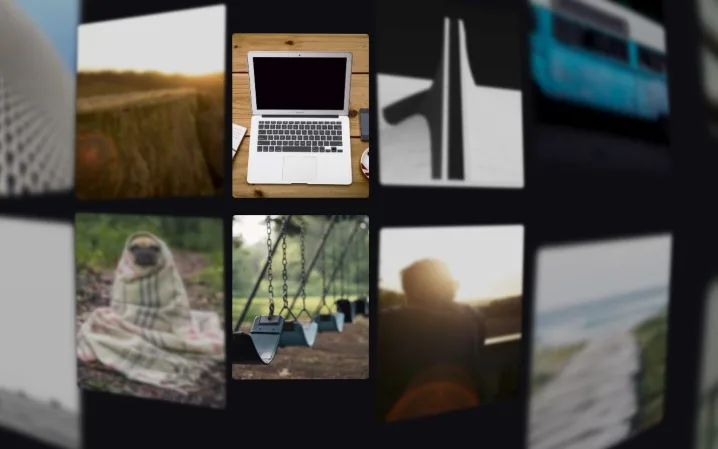
Photos settle into a brick grid, and a tap opens one large.
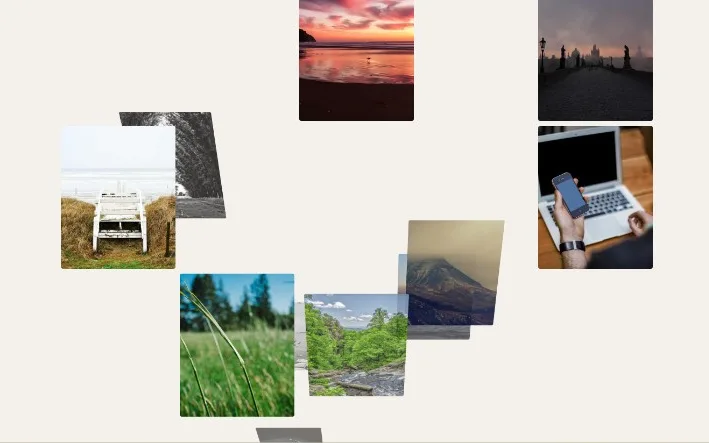
Open live demoGive photographs room to tell the story. I built these Divi gallery modules for image collections that need more than a regular grid: masonry layouts, expanding panels, scroll reveals and spatial galleries, with live demos to help you choose.
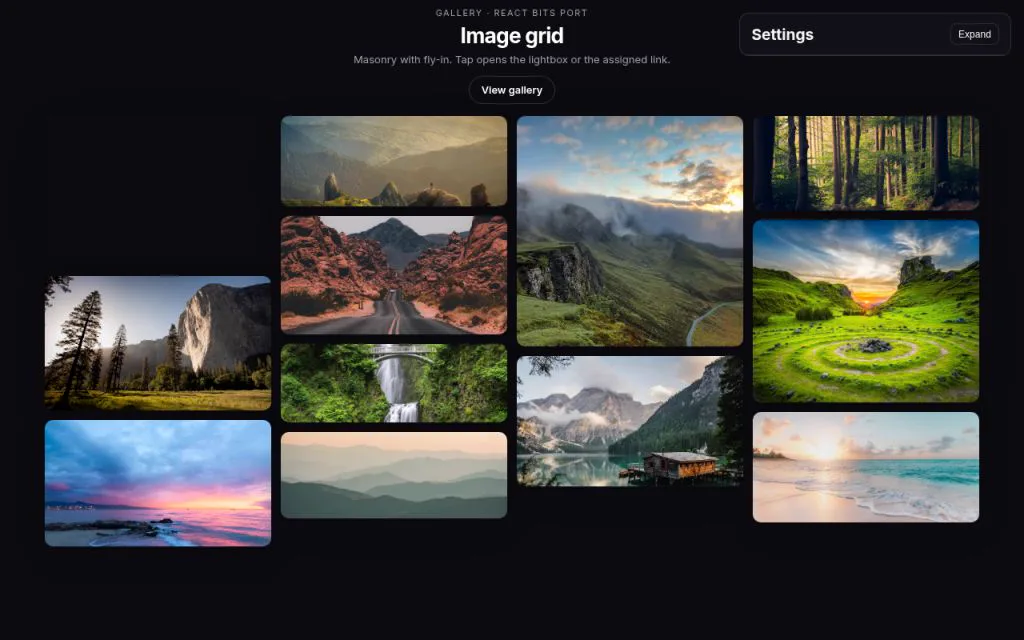
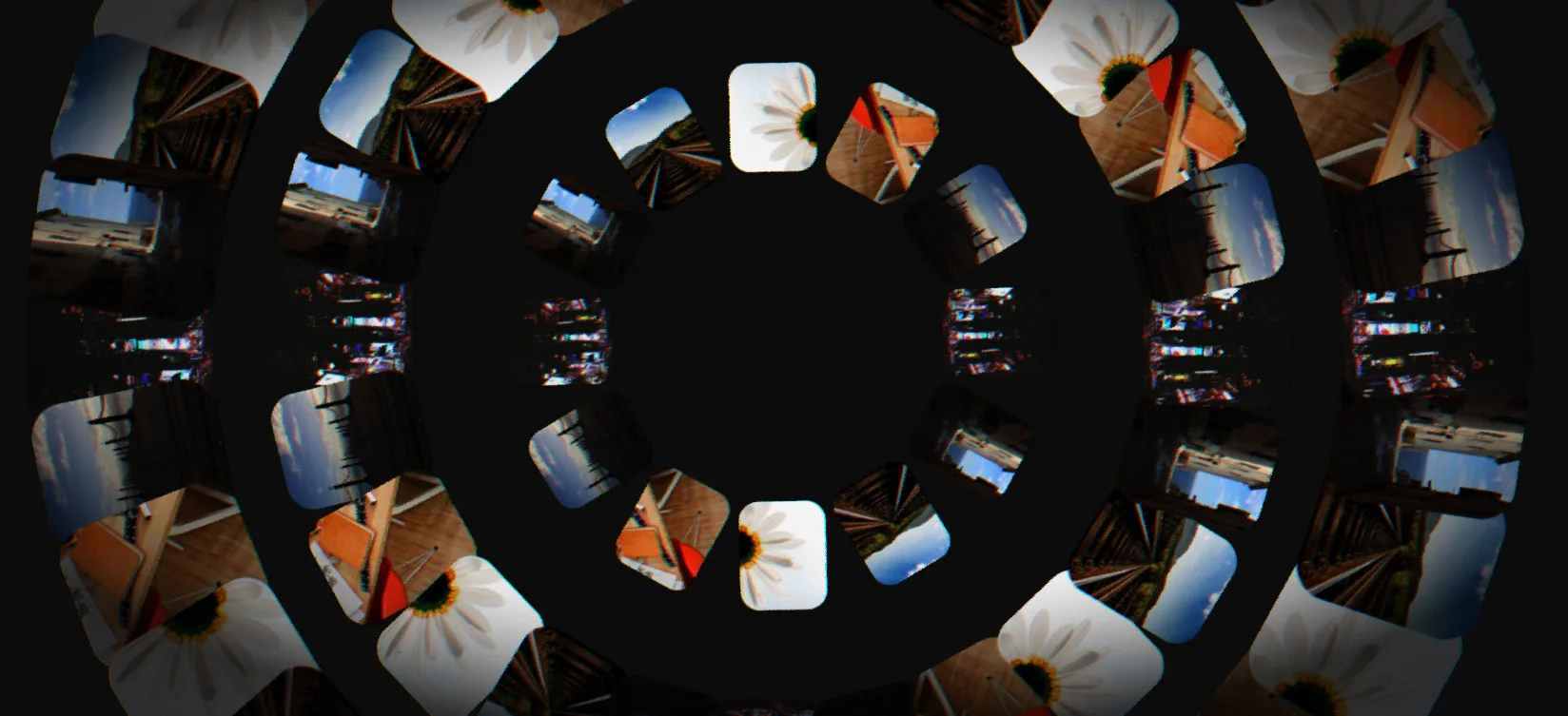
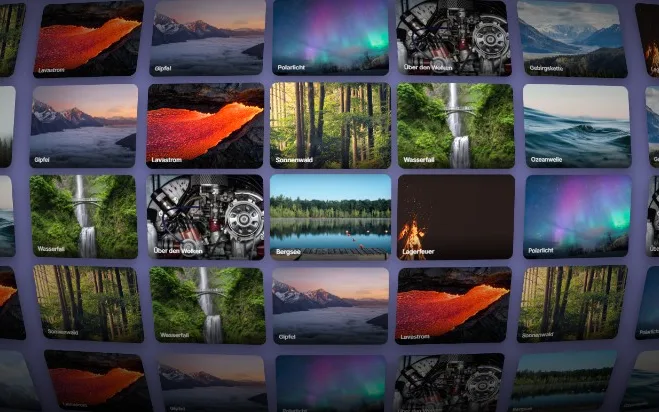

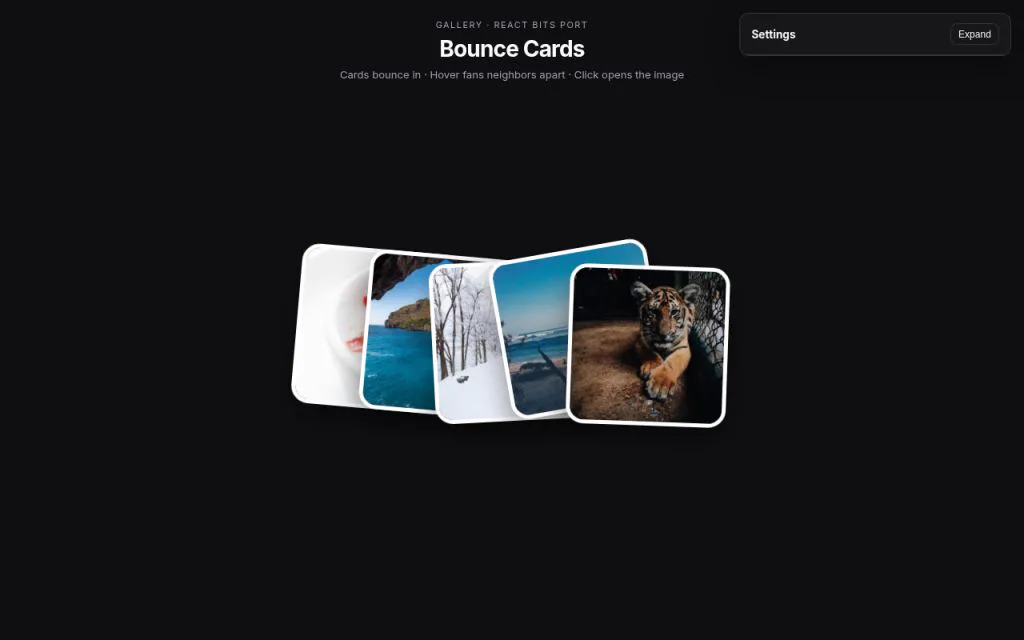
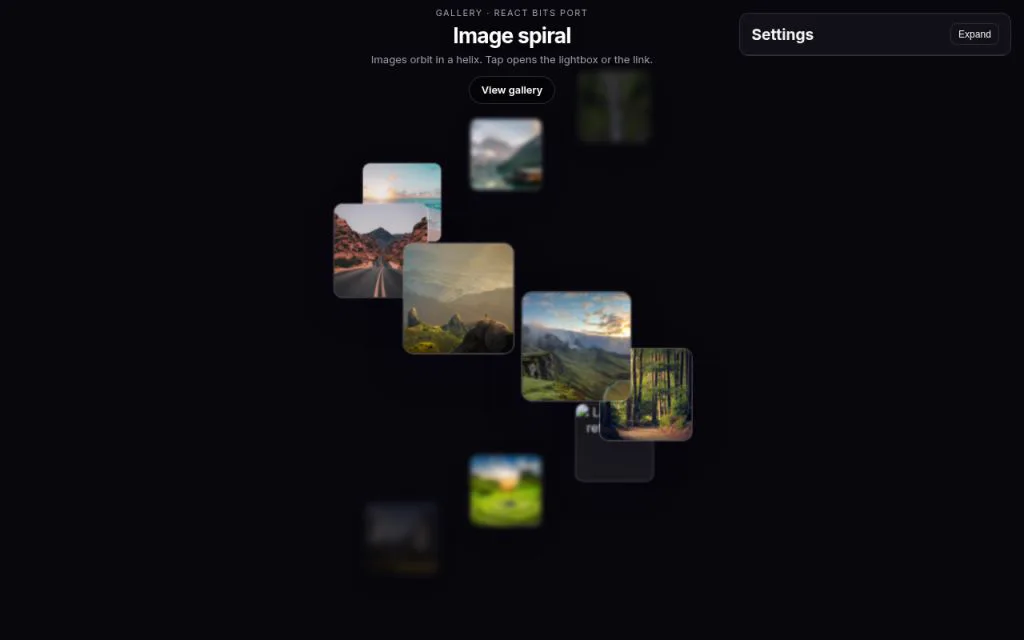
A lightbox opens a photograph above the page so a visitor can inspect it without leaving the surrounding content. The built-in Divi Gallery module already provides an image gallery with a lightbox. If your goal is simply a familiar grid of photographs that opens larger, start there. You do not need an extra animation plugin just to make an image bigger. The reason to choose an animated Divi lightbox module instead of a plain grid is the presentation around that image: its arrangement, the way visitors discover it and how it supports the rest of your page.
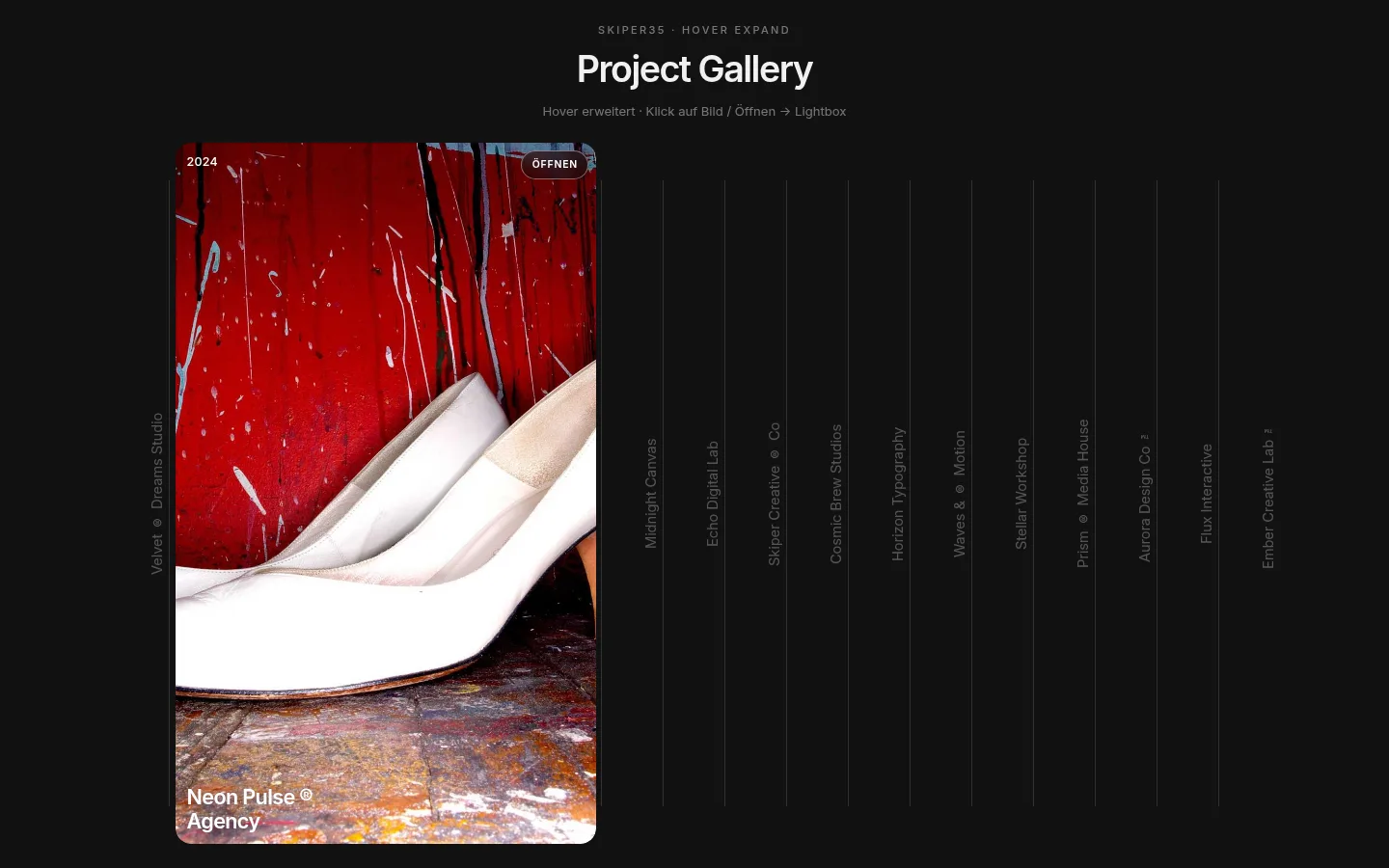
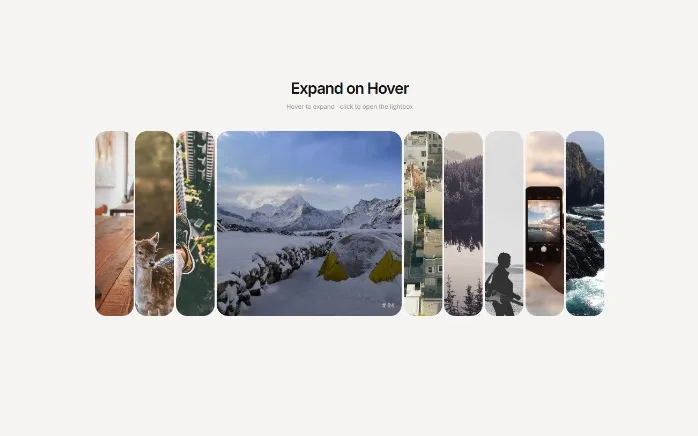
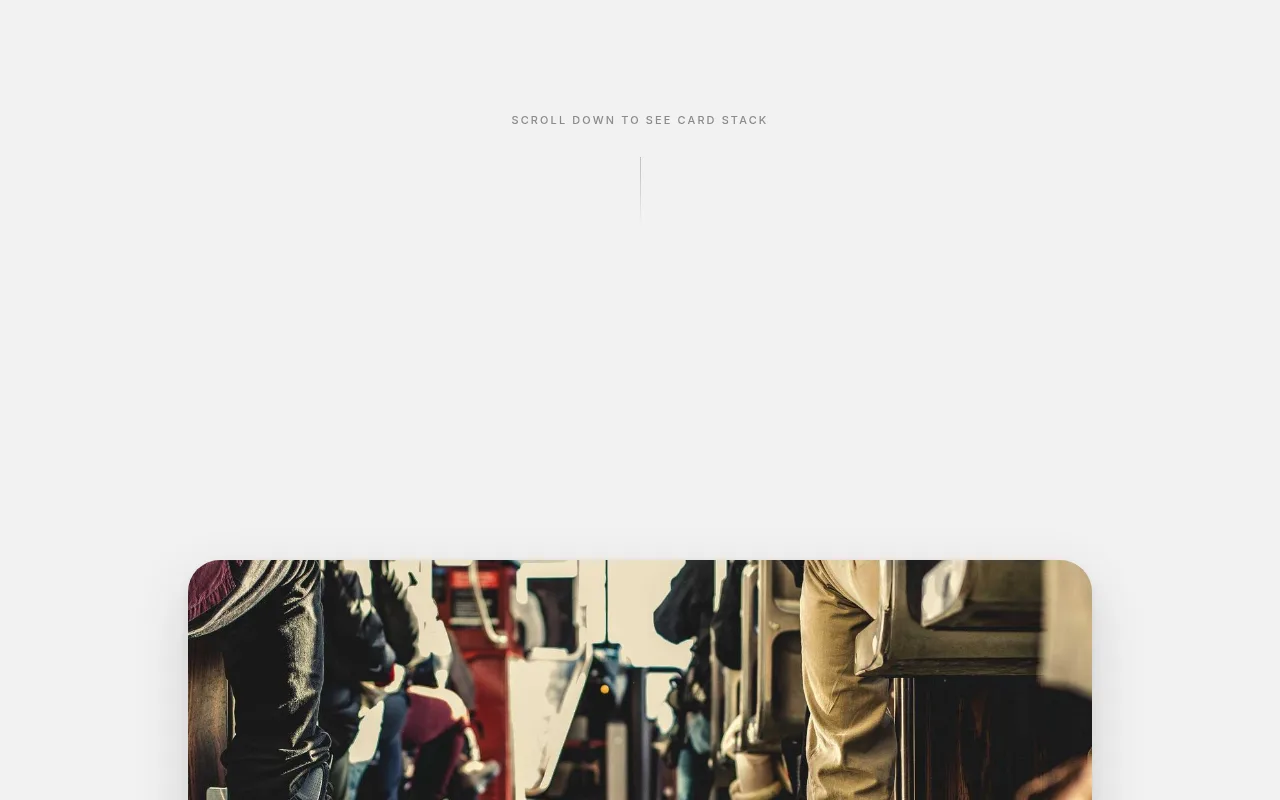
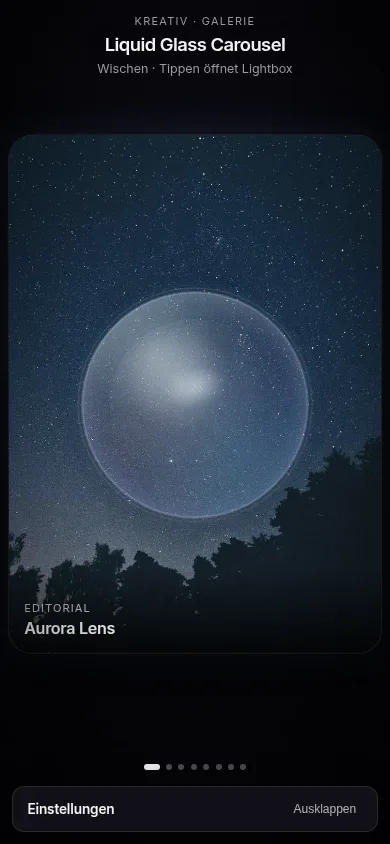
For a mixed collection of portraits and landscapes, Masonry Gallery with Lightbox is a useful starting point because tile heights follow the shape of each image, making each Divi lightbox module feel tailored to the photos rather than cropped to identical boxes. An image accordion instead gives one photograph more space while its neighbours remain visible as narrow panels. A ring, dome or spiral makes browsing more exploratory. Scroll reveals suit a sequence that should unfold alongside a story. These are different ways of presenting images, not interchangeable settings on a single gallery. Open the matching demo below and compare it with the content you intend to publish.
Select your strongest photographs and export them at sensible web sizes before importing the gallery. Very large originals add download cost without necessarily improving the small preview. In the Motion Modules editor, replace the demo images with your own image URLs and enter descriptive alt text. Use the title, description or caption fields that the selected module actually exposes. For Masonry, choose whether clicking opens the image lightbox, follows a link or does nothing. Do not assume every gallery has the same controls or that its lightbox can play video.
Customize the module, then use Motion Modules for Divi to import it into your Divi 5 layout. Leave enough breathing room around the gallery so the interaction is easy to understand. Check the first image, the last image, the close control and the return to the page on a real phone. Touch support for opening an image does not imply a swipe slideshow inside the lightbox. Keep a clear route to the next section and use one strong visual treatment rather than placing several heavy spatial effects together. The result should make the photographs easier to explore, not make navigation the main subject.
These modules are released for Divi 5 in the Builder Matrix. Open a demo to test the actual interaction, then customize it in the editor.
On a phone, swipe each row left or right.
Two of the modules run live on this page. Try them out, then explore every demo of this category below.
Photos settle into a brick grid, and a tap opens one large.
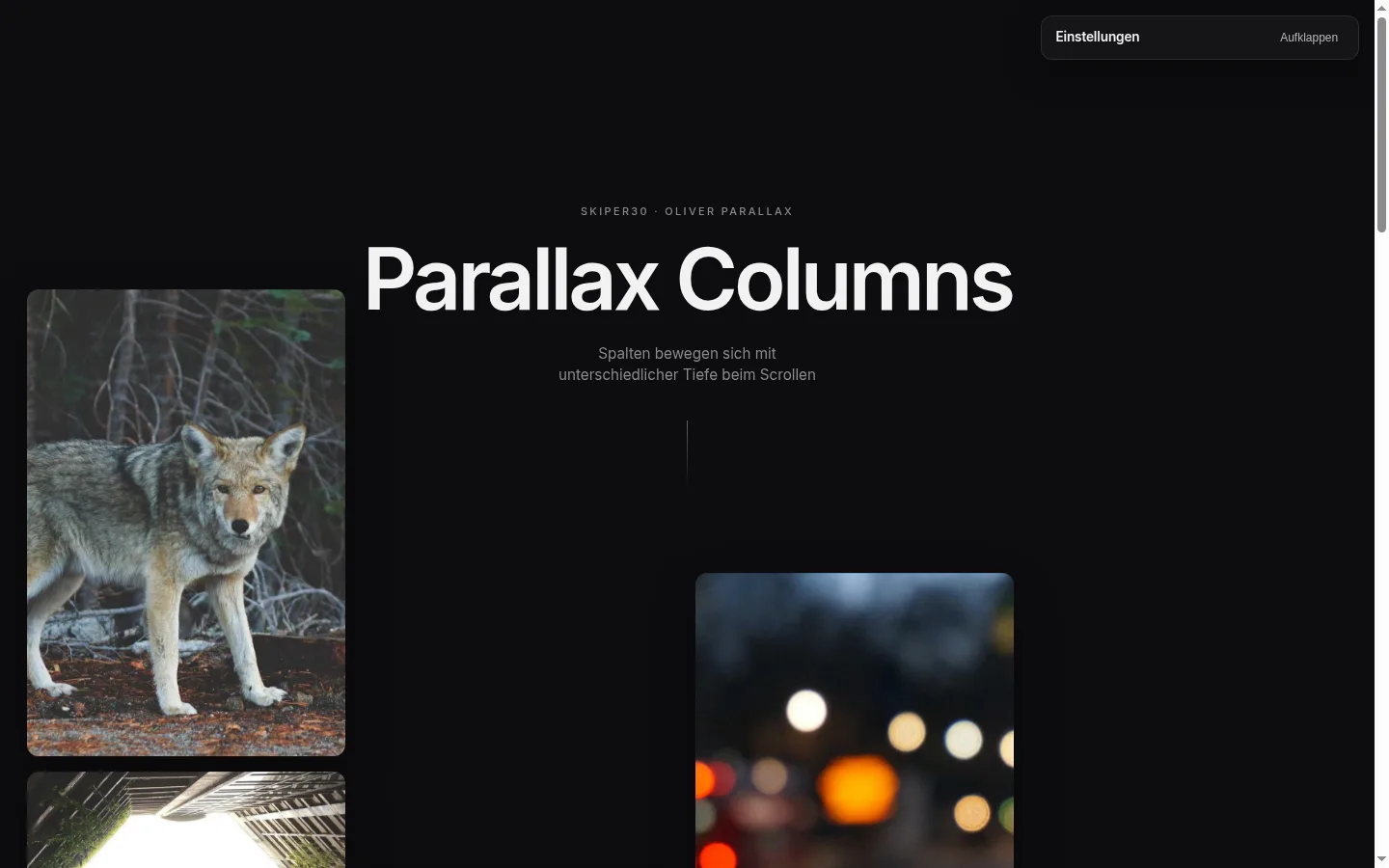
Open live demoColumns move at different speeds, and a tap opens the large view.
Open live demoThree simple steps from the demo to a live section on your Divi site. I test every module in the Divi 5 Visual Builder before it is released.
Choose it in the Motion Modules Library, complete with a live preview on desktop and mobile.
Adjust copy, images, colors, timing and layout without writing a line of code.
On your first login the account asks for your builder. Choose Divi, download the Motion Modules for Divi plugin and activate it. Then insert any module from the Motion Modules folders in the Divi 5 Visual Builder.
Requires Divi 5. Divi 4 is not supported. Install and activate Motion Modules for Divi before importing your customized module.
| Requirement | Built-in Divi | Motion Modules |
|---|---|---|
| Simple image grid | Divi Gallery already covers a conventional gallery and image lightbox. | Choose a different visual layout when the default grid does not fit the photographs. |
| Masonry and motion | A built-in gallery is a sensible baseline for a straightforward image collection. | Masonry, expanding images, scroll reveals and spatial arrangements are separate ready-made modules. |
| Category controls | Check the exact built-in module against your content requirements. | These gallery demos do not provide category filtering. Choose by layout and interaction instead. |
For photography, a masonry grid keeps the collection readable before a visitor opens a detail. For a studio or destination page, an accordion can give each image a brief moment in the spotlight. For an editorial story, a scroll reveal establishes a deliberate reading order. I recommend starting with the simplest layout that makes the collection understandable. Try your own photographs in the editor before deciding, because a convincing demo composition may behave differently with very wide images, short captions or a much larger collection. Image accordions also have their own guide under Divi accordion modules.
Yes. Use the URL of an image uploaded to your WordPress media library in the module image field. Replace the demo content in the Motion Modules editor before importing. Enter useful alt text rather than relying on a filename, and check the result after import.
The Masonry gallery schema and runtime provide an image lightbox, not a video player. I do not advertise video support for these image galleries. If your page needs video, use a suitable Divi video module separately and test its playback and accessibility.
The image fields include alt text. Masonry exposes titles and descriptions, while the image accordions expose their own title or caption controls. Exact fields and their placement vary by module, so inspect the selected demo and editor rather than assuming a shared caption system.
Do not assume so. Masonry opens the selected image in a large view and provides close controls, but its runtime does not provide a swipe-to-next slideshow. Some gallery layouts have their own drag interaction outside the lightbox. Test the specific demo on your phone.
No. Motion Modules for Divi uses the Divi 5 module system. Update or migrate your site to Divi 5 before using these modules. You can try the editor and Divi import during the free 14-day trial before committing to a licence.
Also available for Elementor, Gutenberg, Breakdance and Beaver Builder. Check each module's released builder list in the Motion Modules Library, or view the builder-neutral WordPress gallery plugin overview.
One licence covers all 85 modules, every builder and unlimited websites. Start with the free 14-day trial, no credit card required.